

Built-in integrations
These integrations work out of the box when you connect your source control provider.GitHub & GitLab
Ona Agent includes built-in tools for GitHub and GitLab. Agents can create pull requests, manage issues, add code review comments, and search repositories - no additional configuration required. See GitHub & GitLab tools for capabilities, org controls, and troubleshooting.MCP integrations
Additional integrations use the Model Context Protocol (MCP) and require organization-level enablement plus user authentication.Atlassian
Connect Atlassian to give agents access to Jira and Confluence - managing issues, searching project boards, and accessing documentation directly from conversations. See Configure Atlassian for setup instructions.Linear
Connect Linear to give agents project management capabilities - creating issues, updating status, and accessing project context directly from conversations. See Configure Linear for setup instructions.Notion
Connect Notion to give agents access to your workspace - searching pages, reading documentation, and accessing project wikis directly from conversations. See Configure Notion for setup instructions.Sentry
Connect Sentry to give agents access to error monitoring - viewing issues, analyzing stack traces, and accessing error context directly from conversations. See Configure Sentry for setup instructions.Configuring MCP integrations
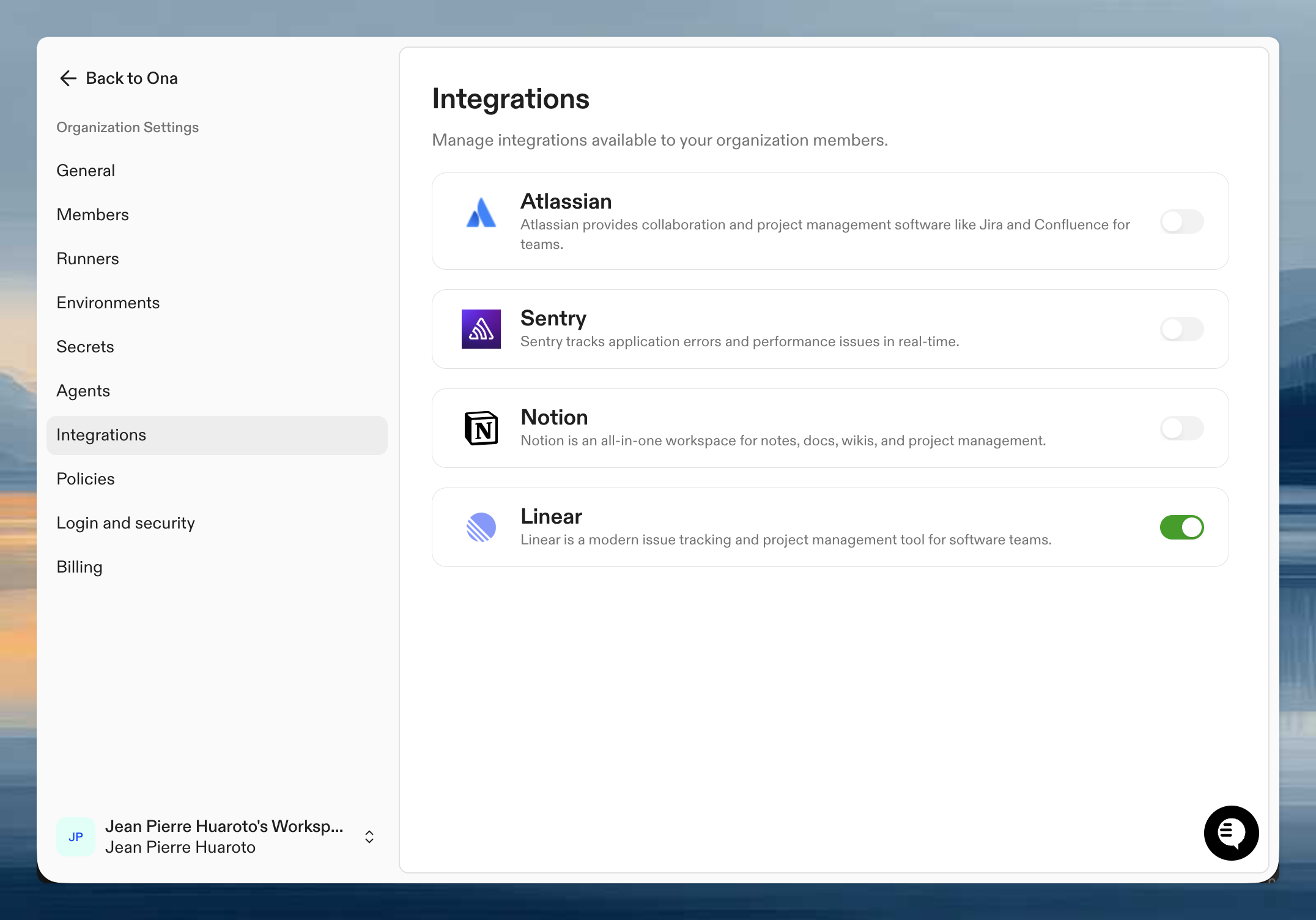
MCP integrations require two-level configuration:- Organization-level: Administrators enable integrations for the organization
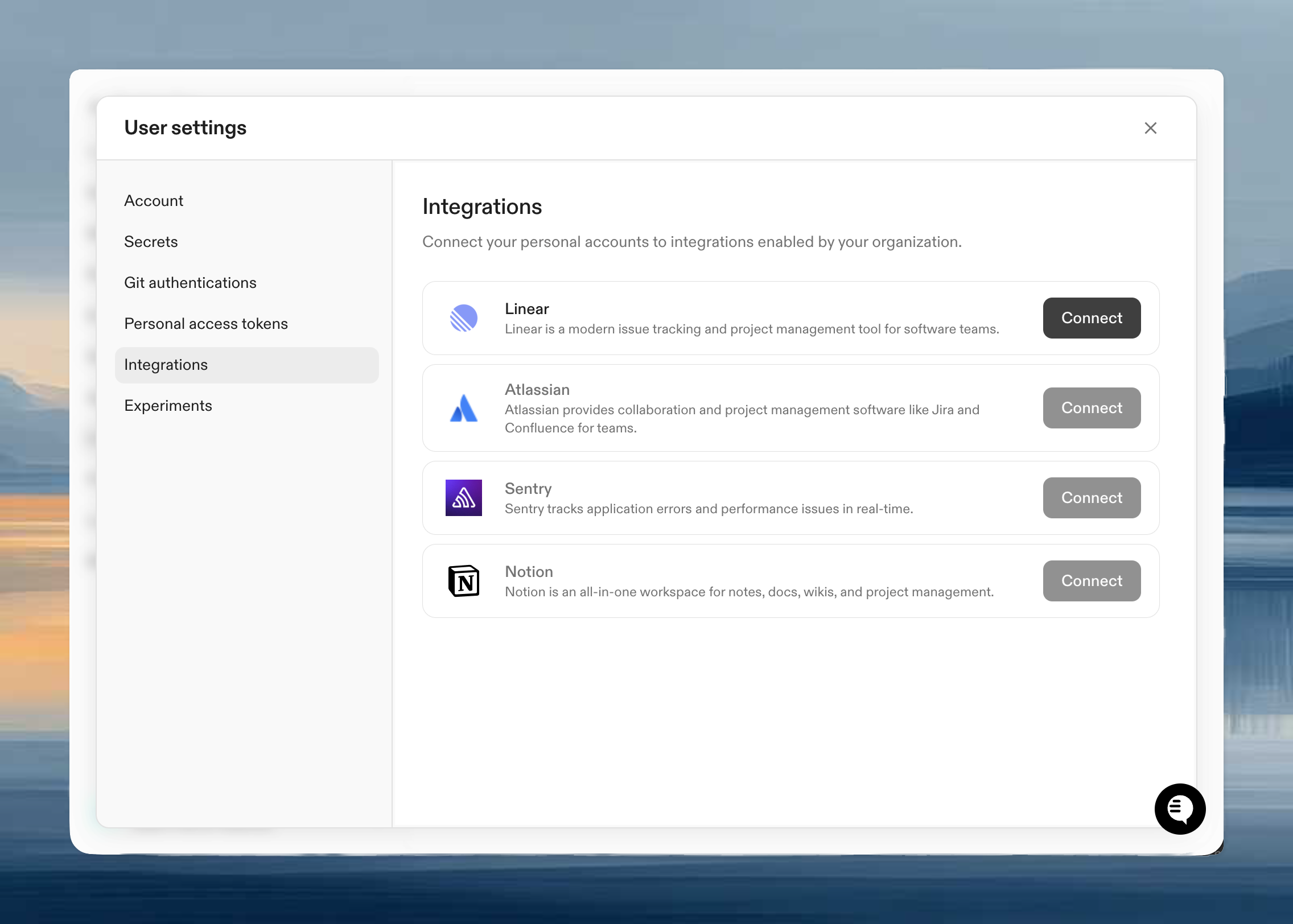
- User-level: Individual users authenticate to grant agent access
Checking integration status
Click the MCP Integrations button in the conversation input to see all available MCP integrations, their connection status, and any error or warning messages.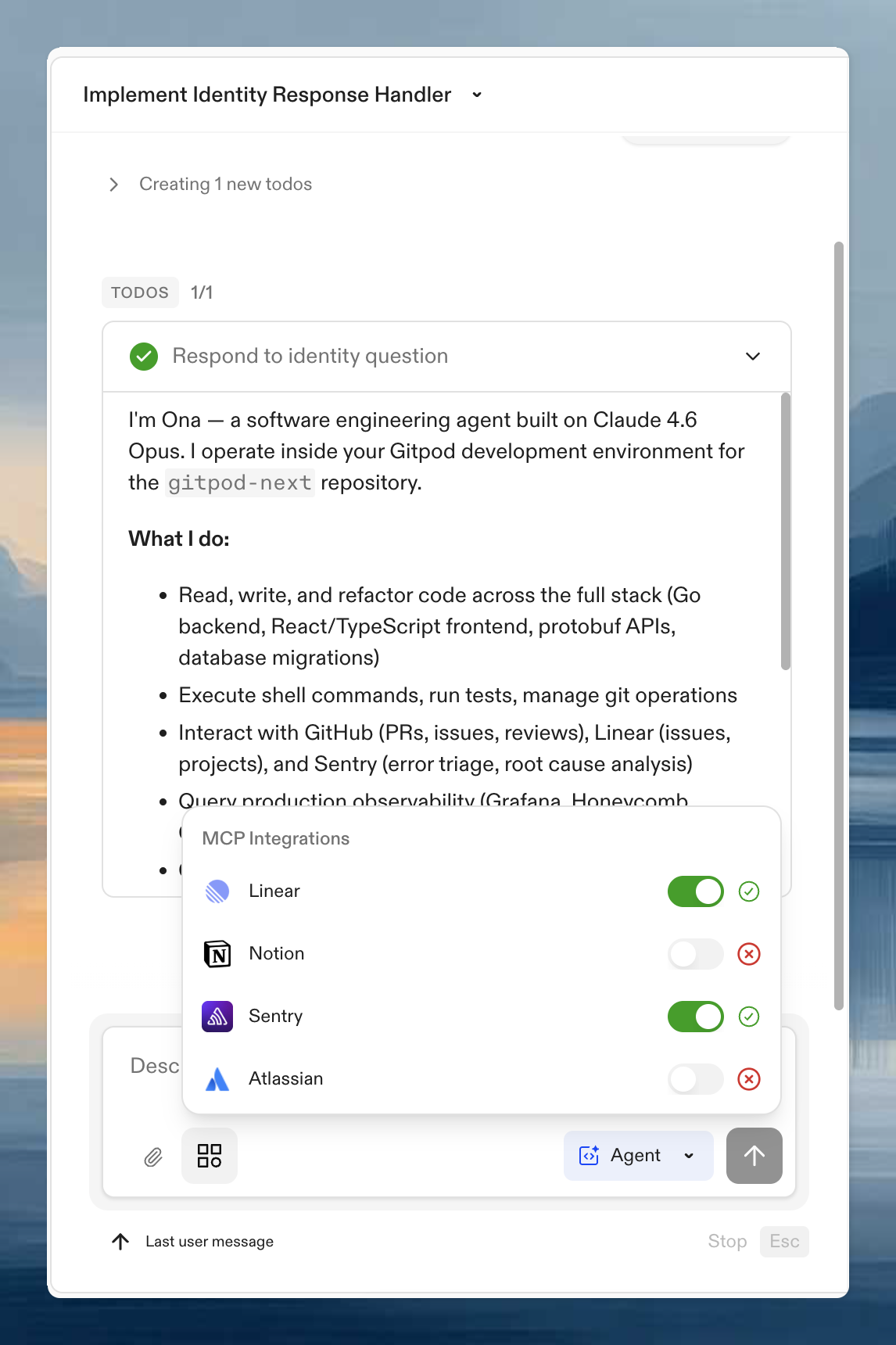
Integrations can only access services after both organization enablement and user authentication are complete.