

Sentry error triage and fix
This template queries Sentry for unresolved errors, traces the highest-impact one to source code, applies a fix, and opens a pull request.What it does
The Automation runs four steps in sequence:- Triage. Queries Sentry for unresolved issues from the past 24 hours, sorted by event count. Selects the top unassigned issue and extracts the title, error message, stack trace, event count, and affected users.
- Root cause analysis. Locates the exact file and line in your repository using the stack trace. Identifies the error category (null reference, type error, unhandled exception, race condition, etc.) and explains the root cause.
- Fix. Applies the minimal change needed to resolve the root cause. Adds or updates tests to cover the error scenario. Runs the test suite and iterates until tests pass.
- Pull request. Opens a PR with the fix, linking back to the Sentry issue.
Prerequisites
- Ona account with Automations enabled
- Sentry integration configured for your organization
- A project with a connected repository that reports errors to Sentry
Set up the Automation
- Navigate to Automations in the left panel and click New.
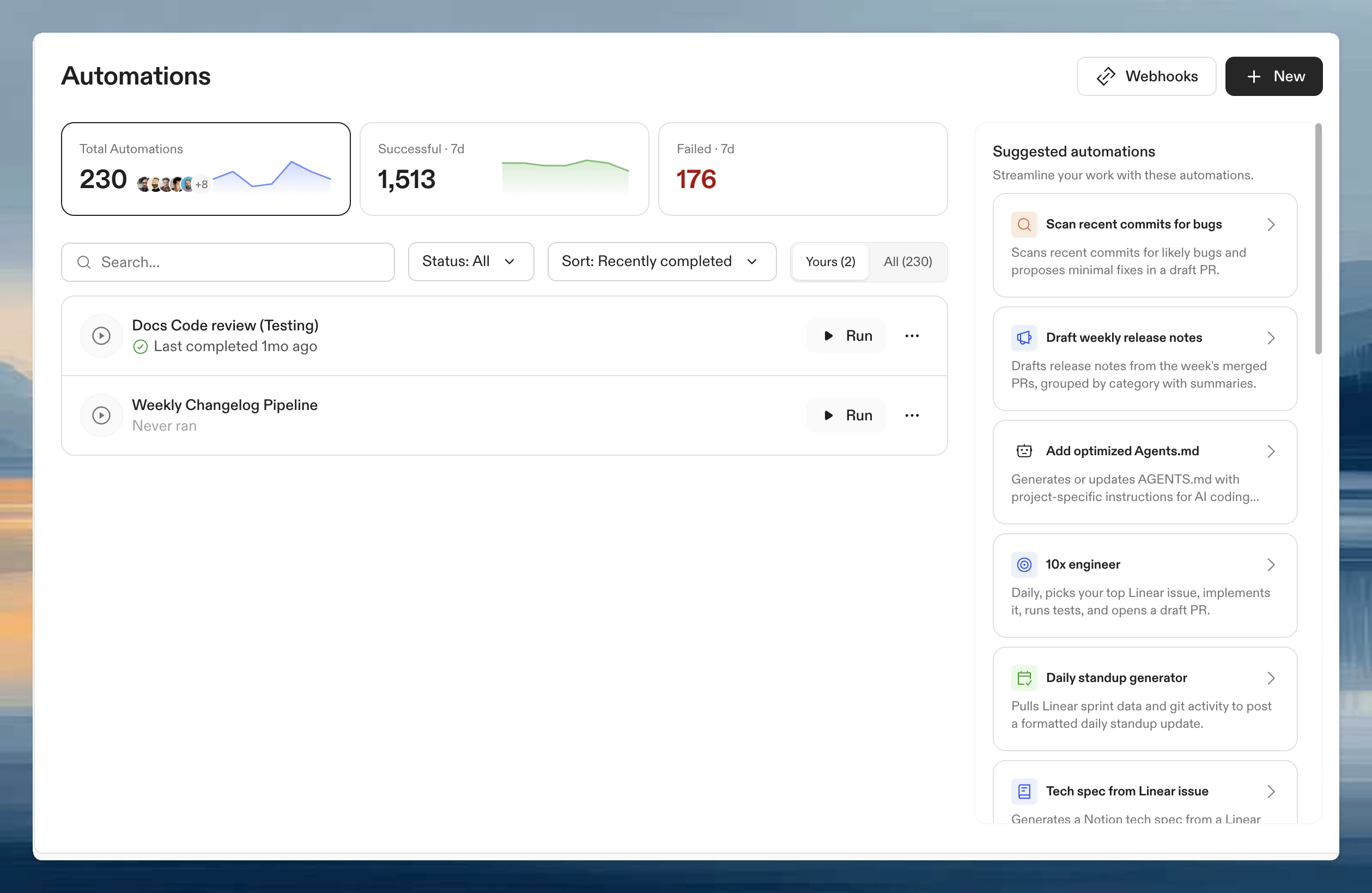
- Select the Sentry error triage and fix template. If the Sentry integration is not configured, a Required Integrations dialog appears. Follow the links to enable the integration in Organization settings > Integrations and connect it with your personal account in User settings > Integrations. The Create button is disabled until all required integrations are configured.
- Under Trigger, the default is Manual. Keep this for your first run. Switch to a daily schedule later.
- Under Projects, select the project whose repository reports to Sentry.
- Click Save.
Run it
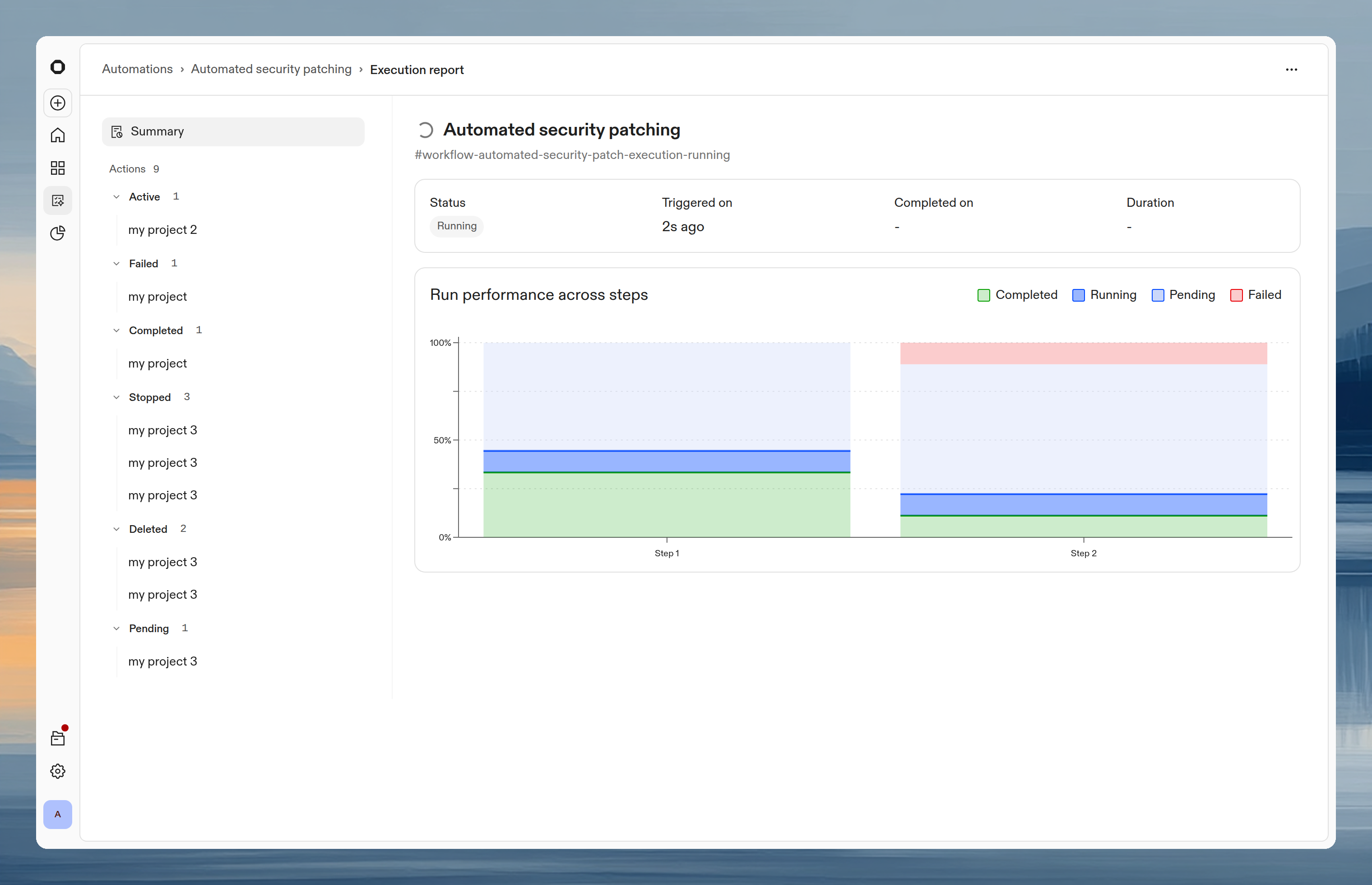
- Open the Automation and click Run.
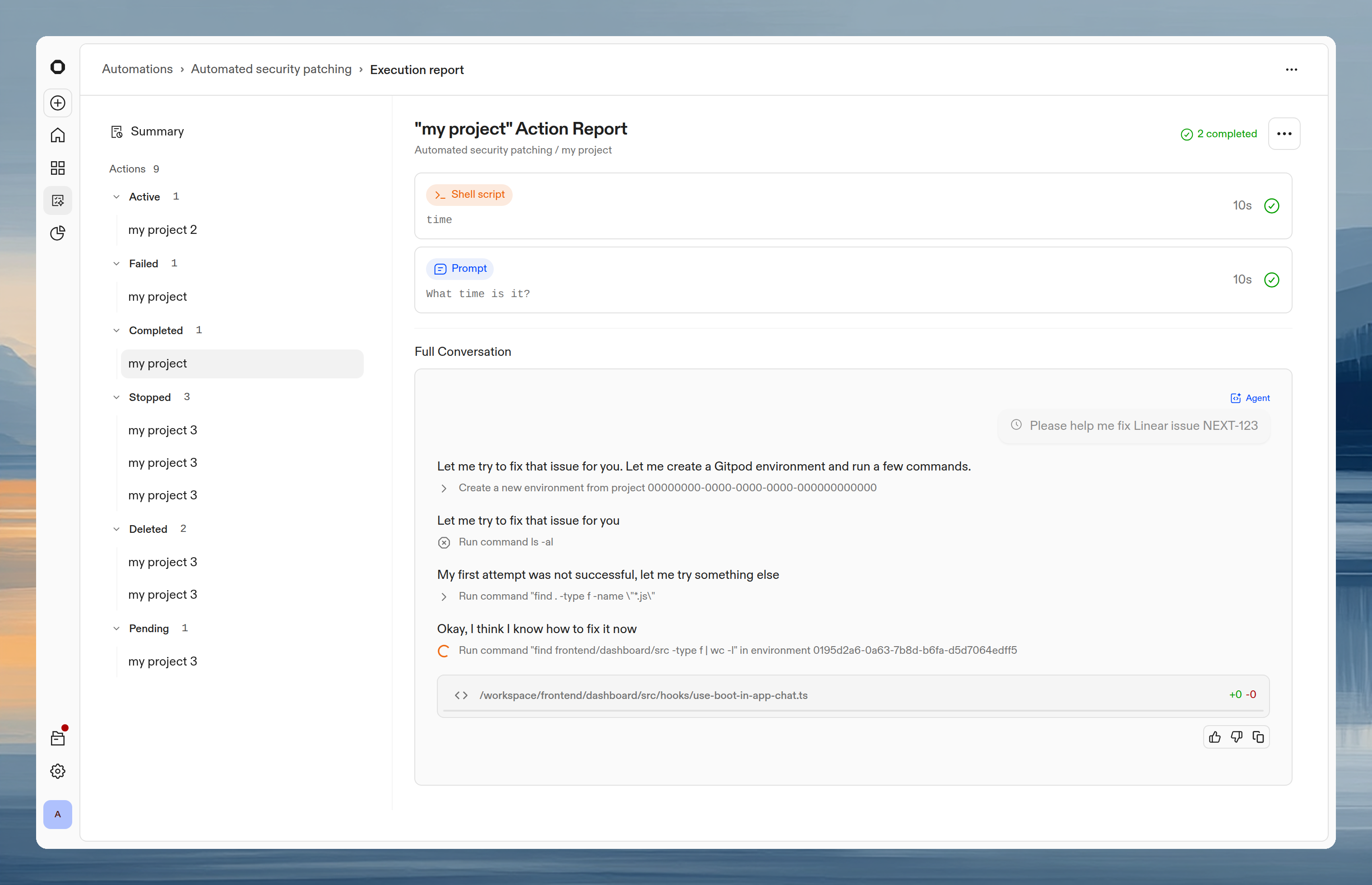
- The execution view shows each step as it progresses:
- Step 1 queries Sentry and selects an error
- Step 2 traces the stack trace to your codebase
- Step 3 applies the fix and runs tests
- Step 4 opens the pull request
Review the result
The Automation opens a pull request with:- The fix applied to the affected file(s)
- New or updated tests covering the error scenario
- A description linking to the Sentry issue and explaining the root cause
Tips
- Start manual. Run the Automation a few times manually to build confidence in the results before scheduling it.
- Schedule regularly. Once you trust the output, switch the trigger to scheduled. Use Every day for daily runs, or Every weekday for weekday mornings at 9 AM UTC.
- Pair with Sentry to Linear issues. The “Sentry to Linear issues” template creates Linear tickets from Sentry errors. Combined with this template, you get a full pipeline: detect, ticket, fix, PR.
Autonomous backlog picker (10x engineer)
This template runs every weekday morning, picks your highest-priority Linear issue, implements it, runs tests, and opens a draft PR.What it does
The Automation runs five steps:- Fetch candidates. Queries Linear for issues assigned to you in the current sprint. Sorts by priority (urgent first), then due date. Excludes issues already in progress, in review, or done. Returns the top 5 candidates.
- Evaluate feasibility. For each candidate, analyzes the repository to determine if the issue can be implemented end-to-end: clear requirements, contained scope, testable, no external infrastructure changes needed. Picks the first feasible issue.
- Code. Updates the Linear issue status to “In Progress,” then writes the changes following existing code patterns. Adds tests for new functionality and handles edge cases from the acceptance criteria.
- Test. Runs the project’s test suite (
npm test,go test ./..., or equivalent). - Pull request. Opens a draft PR linking to the Linear issue. Updates the issue status to “In Review.”
Prerequisites
- Ona account with Automations enabled
- Linear integration configured for your organization and your user account
- A project with a connected repository
- Issues assigned to you in the current sprint/cycle with clear acceptance criteria
Set up the Automation
- Navigate to Automations and select the 10x engineer template. If the Linear integration is not configured, a Required Integrations dialog appears — follow the links to enable and connect it before proceeding.
- Under Trigger, the default is Scheduled: every weekday at 9 AM UTC. Adjust the time to match your morning routine.
- Under Projects, select the project you want the Automation to work on.
- Click Save.
Run it
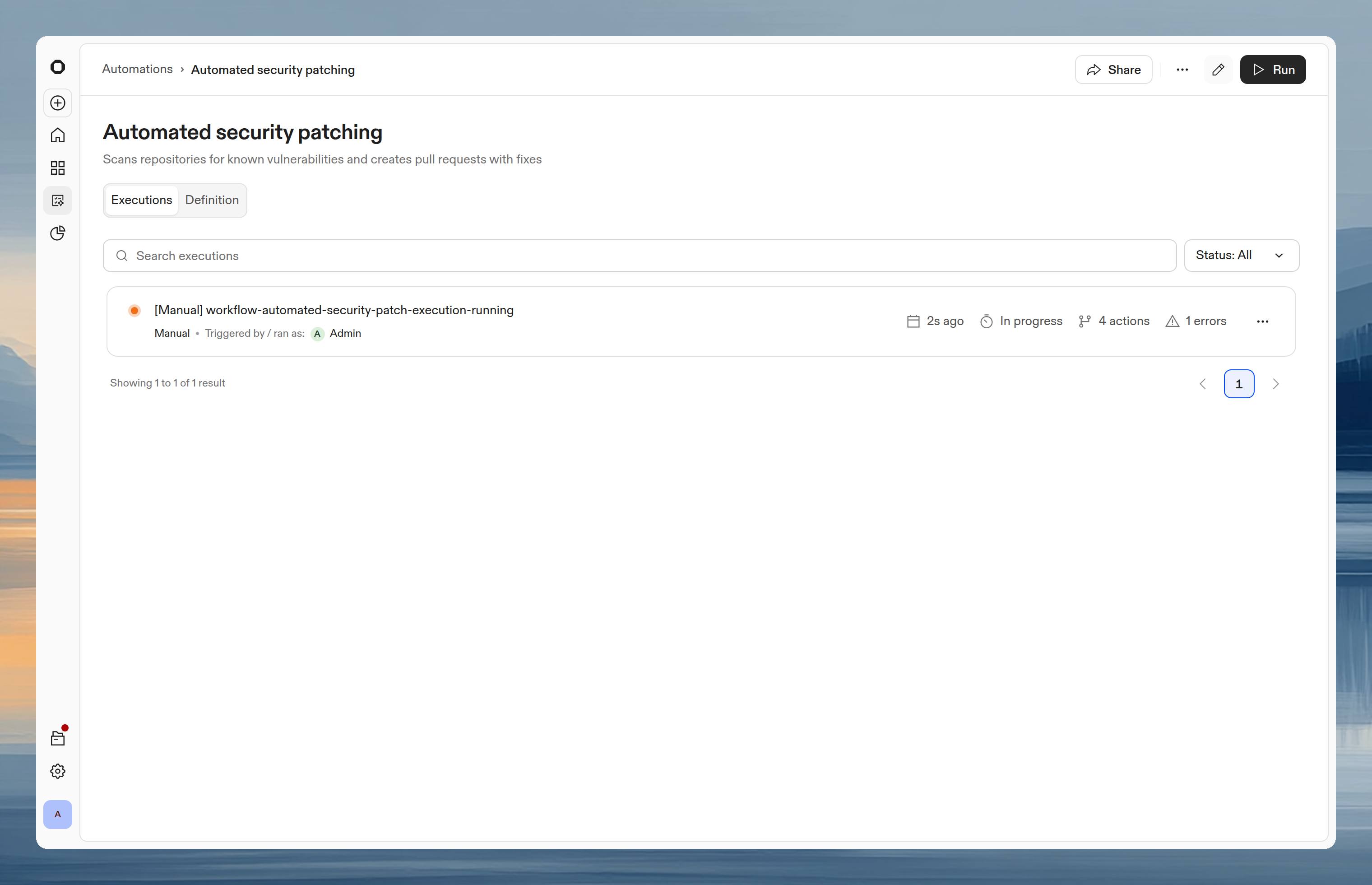
The Automation fires on schedule. Each morning:- It picks your top issue from Linear.
- Implements the change in your repository.
- Runs tests.
- Opens a draft PR.
If none of the top 5 candidates are feasible (too large, unclear requirements, requires infrastructure changes), the Automation stops early and reports why. This is expected. Not every issue is automatable.
Tips
- Keep your backlog prioritized. The Automation picks the highest-priority issue. If your backlog is unsorted, it may pick something low-value.
- Use labels to curate candidates. Add a label like
good-for-onato issues that are well-scoped and automatable, then adjust the prompt to filter by that label. This gives you explicit control over what the Automation picks up. - Start with well-scoped issues. Bug fixes, small features, and refactors with clear acceptance criteria work best. Exclude epics and large issues.
- Review the draft PRs. These are drafts for a reason. Treat them as a starting point, not a finished product.
Codebase cleanup with Knip
This Automation combines a deterministic command (Knip) with the agent to find and remove unused code. It keeps the codebase clean and context windows tight for other agents.What it does
The Automation runs three steps:- Scan. Runs Knip against the repository to detect unused JS/TS dependencies, exports, types, and files.
- Clean up. The agent removes the unused code identified by Knip. Creates small, focused changes that are quick to review.
- Pull request. Opens a PR with automerge enabled. Each PR addresses one category of unused code (dependencies, exports, or files) to keep reviews manageable.
Prerequisites
- Ona account with Automations enabled
- A project with a connected JS/TS repository
- Knip installed as a dev dependency or available in your Dev Container
Set up the Automation
- Navigate to Automations and click New.
- Select Start from scratch.
- Add a Command step that runs Knip and captures the output:
- Add a Prompt step:
- Add a Pull Request step with automerge enabled.
- Under Trigger, select Scheduled with a weekly schedule (e.g.,
0 8 * * 1for Monday mornings). - Under Projects, select the target project.
- Click Save.
Run it
Run the Automation manually first to verify the results. Knip may flag items that are used dynamically or through non-standard imports. Review the first few PRs carefully and adjust the Knip configuration if needed. Once confident, let the weekly schedule handle it. Each Monday morning, you get a small PR removing dead code.Tips
- Configure Knip first. Add a
knip.jsonorknip.tsconfig to exclude known dynamic imports and entry points. This reduces false positives. - Enable automerge. Knip cleanup PRs are low-risk if your test suite is solid. Automerge keeps the process hands-off.
- Pair with CI. Add Knip to your CI pipeline so new unused code is caught at PR time, not only during weekly cleanup.
CVE remediation with Snyk or Aikido
This Automation runs security scanning CLIs against your projects, resolves all found CVEs, and creates standardized PRs. Schedule it for off-hours and review clean PRs the next morning.What it does
The Automation runs four steps:- Scan. Runs the security CLI (Snyk, Aikido, or similar) against the repository to identify CVEs.
- Remediate. The agent resolves each CVE: upgrades dependencies, applies patches, or migrates breaking API changes.
- Verify. Reruns the security scan to confirm all CVEs are resolved. Runs the test suite to verify nothing breaks. Iterates until both pass.
- Pull request. Opens a PR with a summary of resolved CVEs, linking to advisory details.
Prerequisites
- Ona account with Automations enabled
- A project with a connected repository
- Snyk CLI, Aikido CLI, or equivalent installed in your Dev Container
- API token for the security tool stored as a secret
Set up the Automation
- Navigate to Automations and click New.
- Select Start from scratch.
- Add a Command step that runs the security scan:
- Add a Prompt step:
- Add a Pull Request step.
- Under Trigger, select Scheduled with an off-hours schedule (e.g.,
0 20 * * 0for Sunday at 8 PM UTC). - Under Projects, select the target projects.
- Click Save.
Run it
Run manually first against a single repository. Review the PR to verify the fixes are correct and tests pass. Once confident, enable the schedule. Every execution gets the exact same tooling. The environment is reproducible, so results are consistent across runs.Tips
- Schedule for off-hours. Sunday evening is ideal. Review clean PRs Monday morning.
- Run across multiple repos. Select multiple projects to scan your entire organization in parallel.
- Combine with compliance reporting. The Automation’s execution log provides an audit trail of what was scanned, what was found, and what was fixed.
Migrations at scale
This Automation handles large-scale migrations by batching repositories on a schedule and creating incremental, reviewable PRs. Examples: CI pipeline migration (GitLab CI to GitHub Actions), Java 8 to 17 upgrades, JavaScript to TypeScript conversion.What it does
The Automation runs three steps per repository:- Analyze. The agent reads the repository to understand the current state and determine what needs to change for the migration.
- Migrate. Applies the migration changes incrementally. Runs the test suite after each change to verify correctness.
- Pull request. Opens a PR with the migration changes and a description of what was changed and why.
Prerequisites
- Ona account with Automations enabled
- Projects set up for each repository in the migration batch
- A clear migration specification (what to change, what the target state looks like)
Set up the Automation
- Navigate to Automations and click New.
- Select Start from scratch.
- Add a Prompt step with your migration specification. Be specific about the target state:
- Add a Pull Request step.
- Under Trigger, select Scheduled with a batched schedule (e.g.,
0 22 * * 0for Sunday at 10 PM UTC). - Under Projects, select a batch of repositories (e.g., 10 at a time).
- Set Guardrails: max parallel 10, max total 10.
- Click Save.
Run it
Start with a small batch (2-3 repos) to validate the migration logic. Review the PRs carefully. Once the pattern is proven, increase the batch size. Each Sunday night, the Automation migrates the next batch. Engineers review the PRs Monday morning. Over a few weeks, the entire organization is migrated.Tips
- Batch deliberately. Start with simple repositories (few CI jobs, standard configurations) and progress to complex ones.
- Write a detailed migration spec. The more specific the prompt, the more consistent the results across repositories.
- Track progress externally. Use a spreadsheet or Linear project to track which repositories have been migrated, which are in progress, and which remain.
- Combine with a PR trigger. After the migration PR is merged, use a PR-triggered Automation to verify the new CI pipeline runs successfully.
How they connect
These five Automations address different parts of the development cycle but complement each other naturally. The Sentry template finds and fixes production errors. If you also use the Sentry to Linear issues template, those errors become Linear tickets. The Autonomous backlog picker then picks those tickets up automatically in the next morning run. Knip cleanup keeps the codebase lean, which improves the accuracy and speed of every other Automation. CVE remediation handles security debt on a schedule. Migrations at scale tackles the large projects that slip every quarter. Together, they create a loop: detect, triage, fix, clean, ship.Scaling across repositories
The templates above work on a single project and repository. As your usage grows, run the same Automation across multiple repositories in parallel. For example, scanning and fixing Sentry errors across dozens of repos simultaneously. The number of parallel actions depends on your plan. See Plans and limits for details.
Next steps
- Creating Automations: customize templates or build from scratch
- Manual triggers, pull request triggers, and scheduled triggers: configure when Automations run
- Plans and limits: per-plan caps on Automations and actions
- Guardrails: control execution limits and blocked commands
- Service accounts: run Automations as a team identity