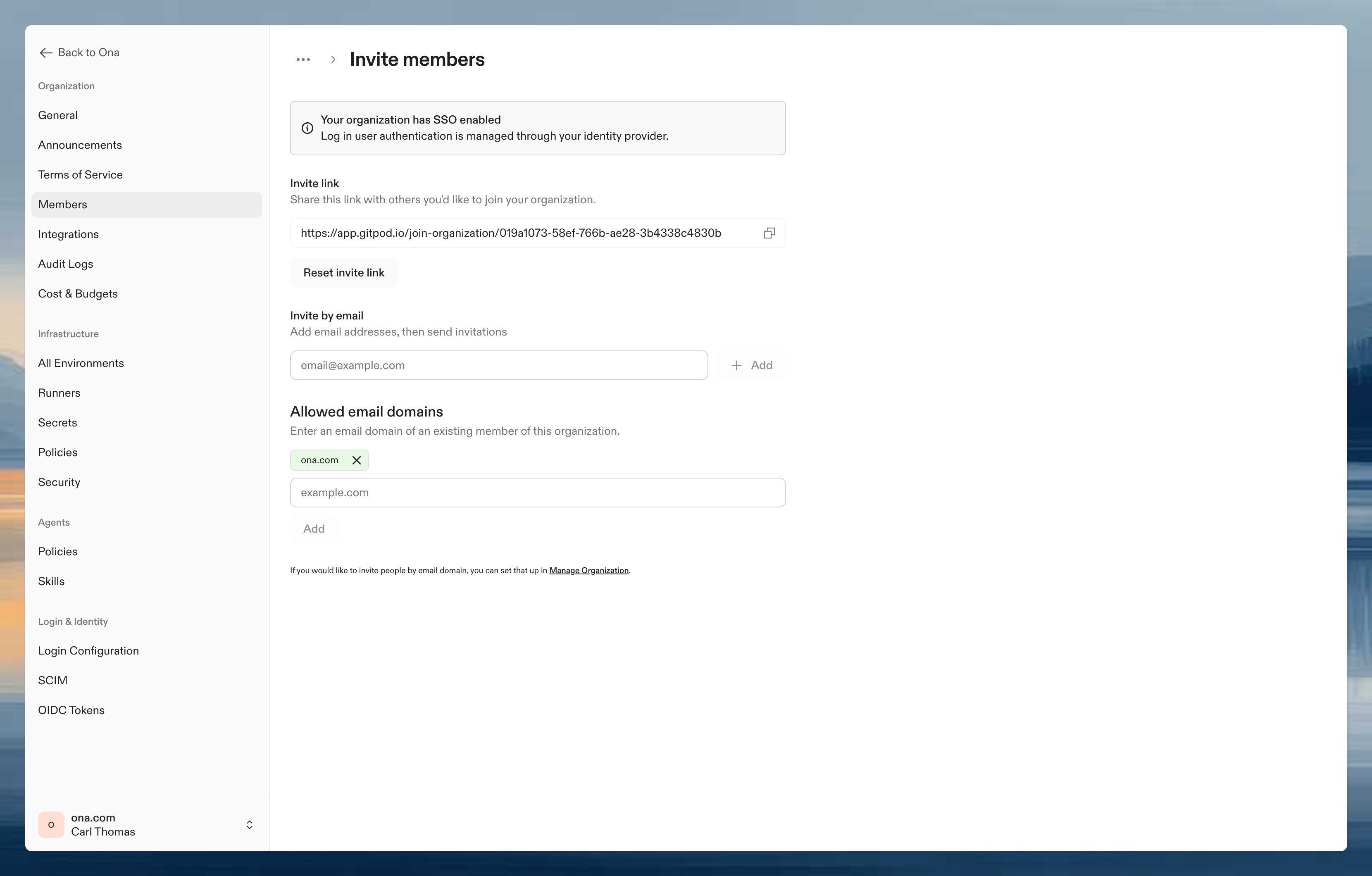

Member roles
Every user in an organization has one of these roles:For delegated administration without full admin access, assign organization roles to groups. This lets you give specific teams management capabilities over runners, projects, groups, or automations.
Permissions
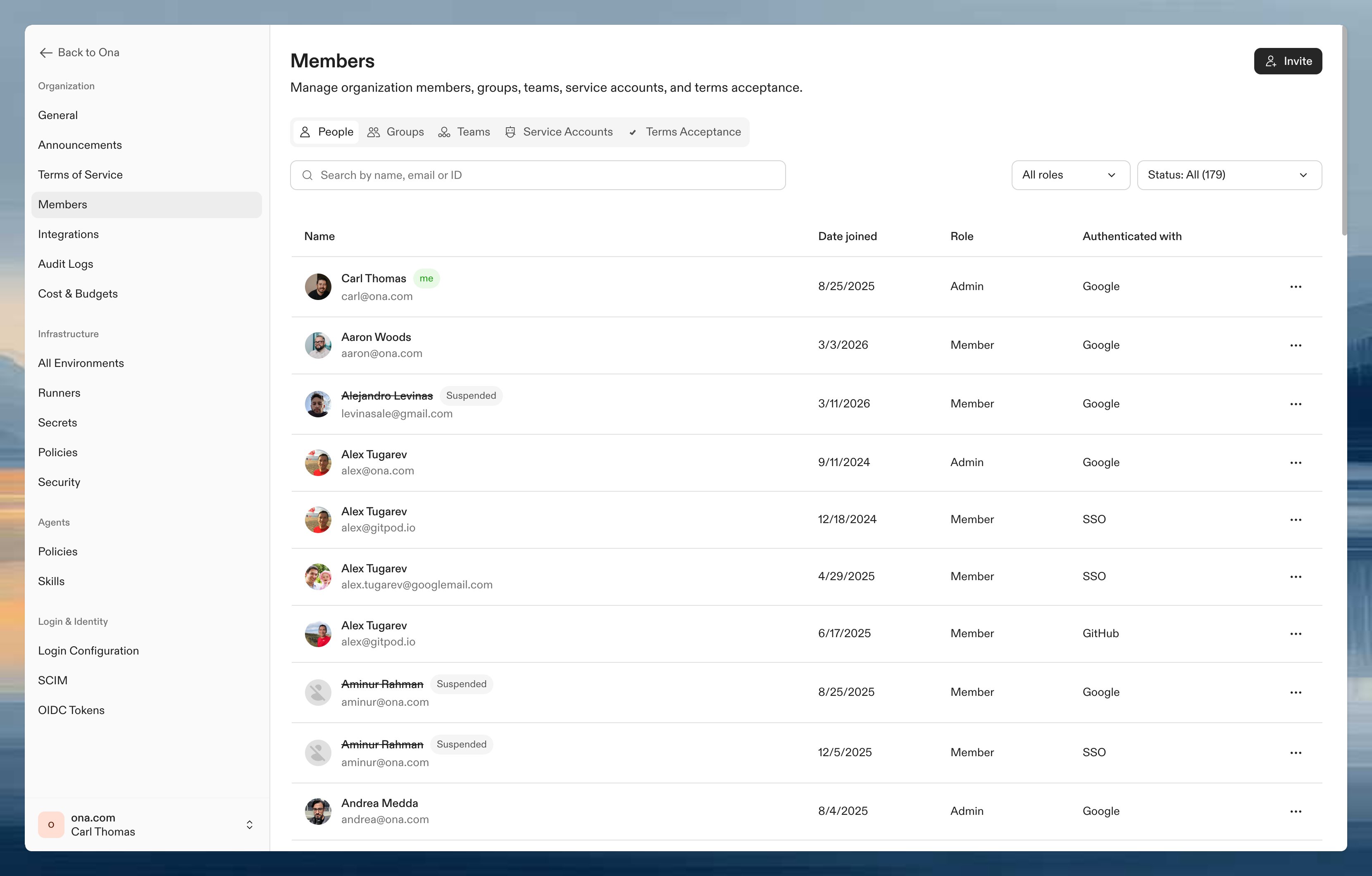
Change a member’s role
- Click the three-dot menu next to the member’s name
- Select Change Role
- Choose the new role and confirm
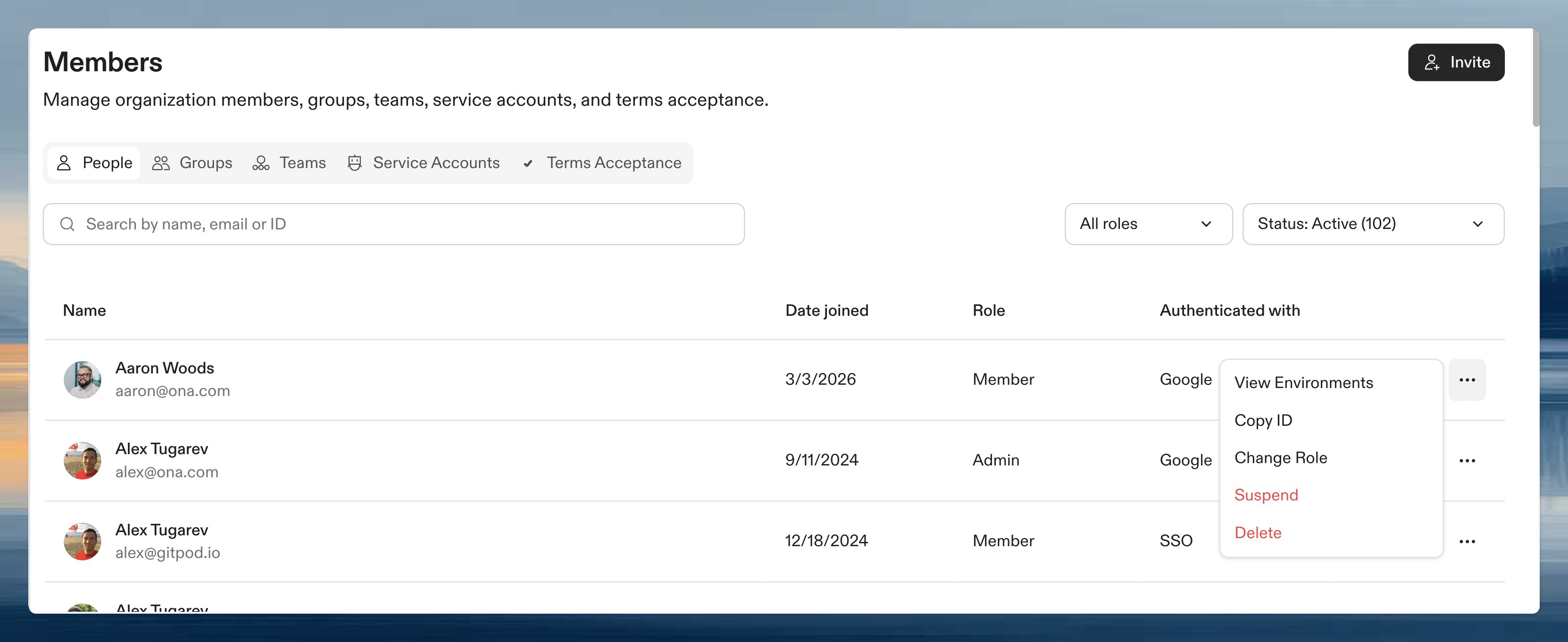
Invite members
Click Invite at the top of the members list. There are three ways to add members:- Invite link: copy the link and share it with your team. Anyone with the link can join. Click Reset Invite Link to invalidate existing links.
- Invite by email: enter email addresses to send invitations directly.
- Allowed email domains: allow anyone with a matching email domain to join automatically.