> ## Documentation Index
> Fetch the complete documentation index at: https://ona.com/docs/llms.txt
> Use this file to discover all available pages before exploring further.
# Running an Automation
> Execute and monitor Automations
Running an Automation creates a run and one or more actions underneath it. Each action represents work on a specific target, such as a repository or project selected by the trigger configuration.
Use this page when you want to start an Automation manually, monitor progress, inspect failures, or review what the agent actually did.
## What a run contains
* **Run**: the top-level execution record
* **Actions**: per-target executions created under that run
* **Execution details**: action status, step progress, failures, and, when available, the full agent session for an action
## Start an Automation
Disabled Automations cannot be started. The **Run** button is hidden and triggers are ignored while an Automation is disabled. [Re-enable it](/docs/ona/automations/configure-automations#enable-and-disable) first.
1. Open the Automation (or use the three-dot menu from the list).
2. Click **Run** to start immediately with the Automation's configured targets when it has no parameters.
To change the targets for one execution, click the arrow next to **Run**, then select **Run with options**. Clicking **Run** opens the same dialog automatically when the Automation has no usable configured targets, uses an event-derived context, or references run parameters.
The dialog prevents the run from starting until it has at least one accessible project or a complete repository target. Projects you cannot access are removed from the execution target list.
## Run with parameters
When an Automation references parameters, **Run with options** lists every detected parameter. Enter a non-empty value for each one before clicking **Run**. Ona also validates required parameters on the server, so a manual run cannot start with unresolved templates through another client.
A parameter named `ticket_id`, for example, replaces `{{ .Parameters.ticket_id }}` in templated commands, prompts, and pull request fields. An Automation can reference up to 10 parameters.
```text theme={null}
Fix {{ .Parameters.ticket_id }} in {{ .Parameters.repository }}.
```
For this example, the dialog requires values for both `ticket_id` and `repository`. Spaces alone do not count as a value.
To define parameters in the Automation editor, see [Add parameters to manual runs](/docs/ona/automations/configure-automations#add-parameters-to-manual-runs).
Do not use parameters for sensitive values. Configure [service account secrets](/docs/ona/organizations/service-accounts#secrets) instead.
## Run with parameters through the API
Call `WorkflowService/StartWorkflow` with a [personal access token](/docs/ona/integrations/personal-access-token) or [service account token](/docs/ona/organizations/service-accounts). Put each template parameter in the `parameters` object.
```bash theme={null}
export ONA_API_URL="https://app.gitpod.io"
export GITPOD_API_KEY=""
curl "$ONA_API_URL/api/gitpod.v1.WorkflowService/StartWorkflow" \
-H 'Content-Type: application/json' \
-H "Authorization: Bearer $GITPOD_API_KEY" \
-d '{
"workflowId": "",
"parameters": {
"ticket_id": "ONA-123",
"repository": "gitpod-io/gitpod-next"
}
}'
```
This request uses the Automation's configured manual context. If the Automation has no manual trigger, Ona uses its scheduled trigger context. To choose targets for one run, add `contextOverride`:
```json theme={null}
{
"workflowId": "",
"contextOverride": {
"projects": {
"projectIds": [""]
}
},
"parameters": {
"ticket_id": "ONA-123"
}
}
```
The API applies the same rules as the UI:
* Every parameter referenced by a manual run must have a non-empty value. Spaces alone do not count.
* Parameter names must match `^[a-zA-Z_][a-zA-Z0-9_]*$`.
* A request can contain up to 10 parameters.
* `contextOverride` supports project, repository, and agent contexts. An event-derived `fromTrigger` context is not valid for a manual run.
* The caller must have access to every target in `contextOverride`.
If your organization uses a custom domain, set `ONA_API_URL` to that management-plane origin and use a token created on the same domain.
## Monitor progress
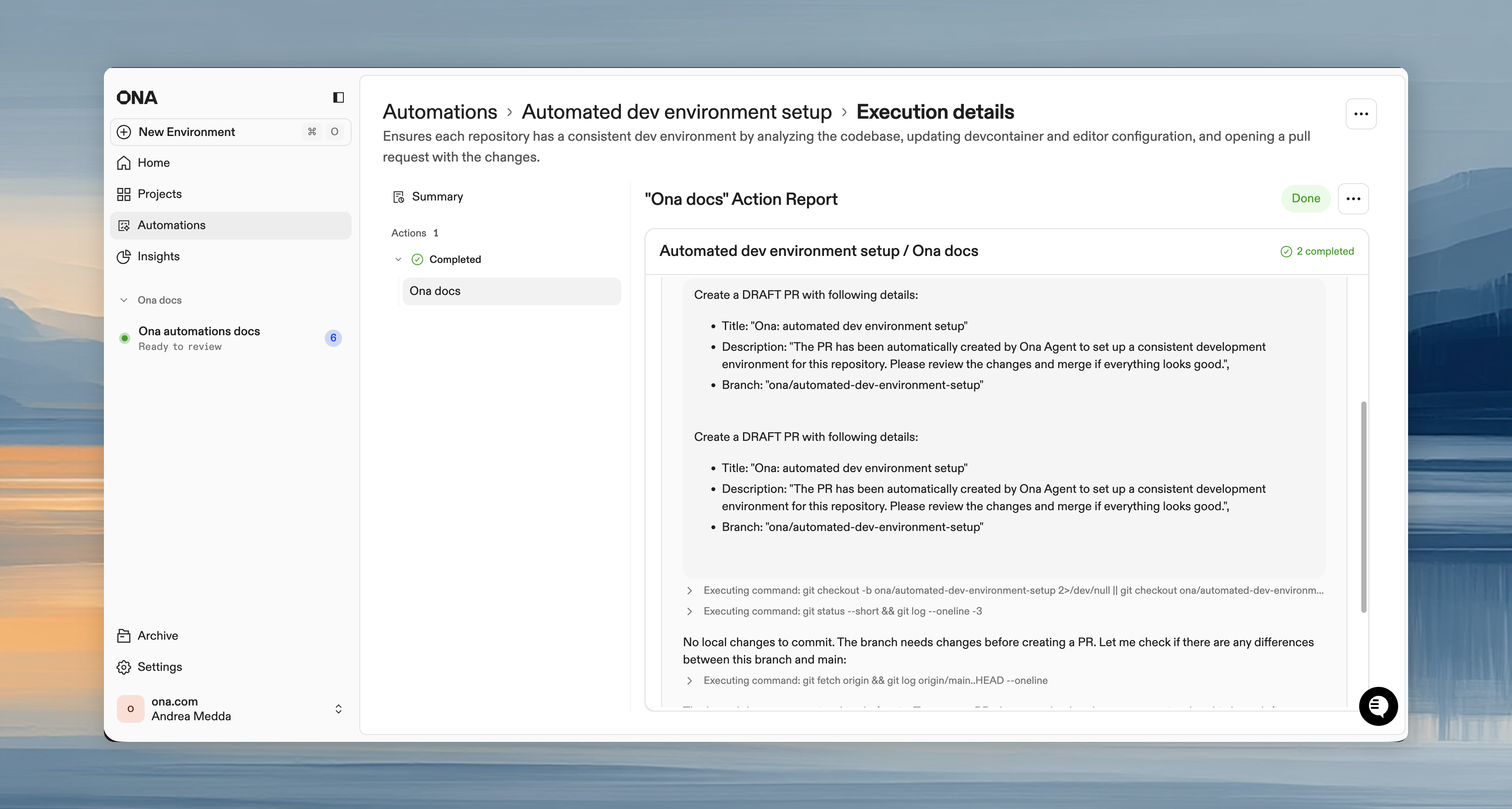
The run details page shows real-time execution status.
**Action statuses:**
* **Pending**: queued, waiting to start
* **Running**: currently executing
* **Done**: finished successfully
* **Failed**: finished with errors
* **Stopped**: canceled before completion
Click any action to inspect its steps, current state, and, when available, the full agent session.
 ## What to look for while monitoring
When a run is active, focus on:
* whether actions are starting as expected
* which step a failed action stopped on
* whether failures are isolated to one target or systemic across many targets
If many actions fail in the same place, the problem is usually in the Automation configuration, repository setup, or shared credentials. If only one action fails, the issue is usually specific to that target.
## Cancel execution
* **Single action**: three-dot menu > **Cancel**
* **Entire run**: click **Cancel** on the run details page
Running actions stop immediately. Pending actions are skipped.
## Review results
After completion:
* View execution summary (completed/failed/canceled actions, time)
* Click individual actions to review execution details
* Check your SCM for pull requests created by the Automation
## Execution history
View past runs from the Automation's **Execution History** section. Each run retains action status and execution details for later inspection.
For Enterprise organizations with per-run intelligence metrics enabled, agent details are available to anyone who can view the run. Codex runs show the effective model and reasoning effort; Ona runs show **Ona Agent**.
* **Organization admins** and **Automation admins** also see intelligence usage for each run.
* **Billing Viewers** see intelligence usage only for automation runs they already have permission to view.
* Other scoped organization roles do not see intelligence usage unless another assigned role grants one of these permissions.
After a run finishes and its final usage has been calculated, managed usage is shown in credits and bring-your-own-key usage is shown in your organization's billing currency. If any bring-your-own-key prices are missing, the run shows its token usage instead of a partial cost. An organization admin can add model pricing under **Cost & Budgets**.
Use history to compare configuration changes over time or to confirm whether a failure started after a workflow, secret, or trigger change.
## Common follow-ups
After reviewing a run, the next step is usually one of:
* update the Automation configuration and run it again
* fix repository setup or secrets for the failing target
* tighten [guardrails](/docs/ona/automations/guardrails) or switch to a [service account](/docs/ona/organizations/service-accounts)
* move from manual testing to a [time-based](/docs/ona/automations/triggers/timebased) or [pull request](/docs/ona/automations/triggers/pullrequest) trigger
## Next steps
* [Guardrails](/docs/ona/automations/guardrails)
* [Service accounts](/docs/ona/organizations/service-accounts)
* [Troubleshooting](/docs/ona/automations/troubleshooting)
## What to look for while monitoring
When a run is active, focus on:
* whether actions are starting as expected
* which step a failed action stopped on
* whether failures are isolated to one target or systemic across many targets
If many actions fail in the same place, the problem is usually in the Automation configuration, repository setup, or shared credentials. If only one action fails, the issue is usually specific to that target.
## Cancel execution
* **Single action**: three-dot menu > **Cancel**
* **Entire run**: click **Cancel** on the run details page
Running actions stop immediately. Pending actions are skipped.
## Review results
After completion:
* View execution summary (completed/failed/canceled actions, time)
* Click individual actions to review execution details
* Check your SCM for pull requests created by the Automation
## Execution history
View past runs from the Automation's **Execution History** section. Each run retains action status and execution details for later inspection.
For Enterprise organizations with per-run intelligence metrics enabled, agent details are available to anyone who can view the run. Codex runs show the effective model and reasoning effort; Ona runs show **Ona Agent**.
* **Organization admins** and **Automation admins** also see intelligence usage for each run.
* **Billing Viewers** see intelligence usage only for automation runs they already have permission to view.
* Other scoped organization roles do not see intelligence usage unless another assigned role grants one of these permissions.
After a run finishes and its final usage has been calculated, managed usage is shown in credits and bring-your-own-key usage is shown in your organization's billing currency. If any bring-your-own-key prices are missing, the run shows its token usage instead of a partial cost. An organization admin can add model pricing under **Cost & Budgets**.
Use history to compare configuration changes over time or to confirm whether a failure started after a workflow, secret, or trigger change.
## Common follow-ups
After reviewing a run, the next step is usually one of:
* update the Automation configuration and run it again
* fix repository setup or secrets for the failing target
* tighten [guardrails](/docs/ona/automations/guardrails) or switch to a [service account](/docs/ona/organizations/service-accounts)
* move from manual testing to a [time-based](/docs/ona/automations/triggers/timebased) or [pull request](/docs/ona/automations/triggers/pullrequest) trigger
## Next steps
* [Guardrails](/docs/ona/automations/guardrails)
* [Service accounts](/docs/ona/organizations/service-accounts)
* [Troubleshooting](/docs/ona/automations/troubleshooting)