> ## Documentation Index
> Fetch the complete documentation index at: https://ona.com/docs/llms.txt
> Use this file to discover all available pages before exploring further.
# Configure Automations
> Configure triggers, steps, guardrails, and workflows
This guide covers Automation configuration in detail. For a quick walkthrough, see [Create your first Automation](/docs/ona/create-first-automation).
Automations work best with [projects](/docs/ona/projects/overview). A project provides the Dev Container configuration, dependencies, and environment settings that your Automation runs against. We recommend setting up a project before creating Automations.
## Create an Automation
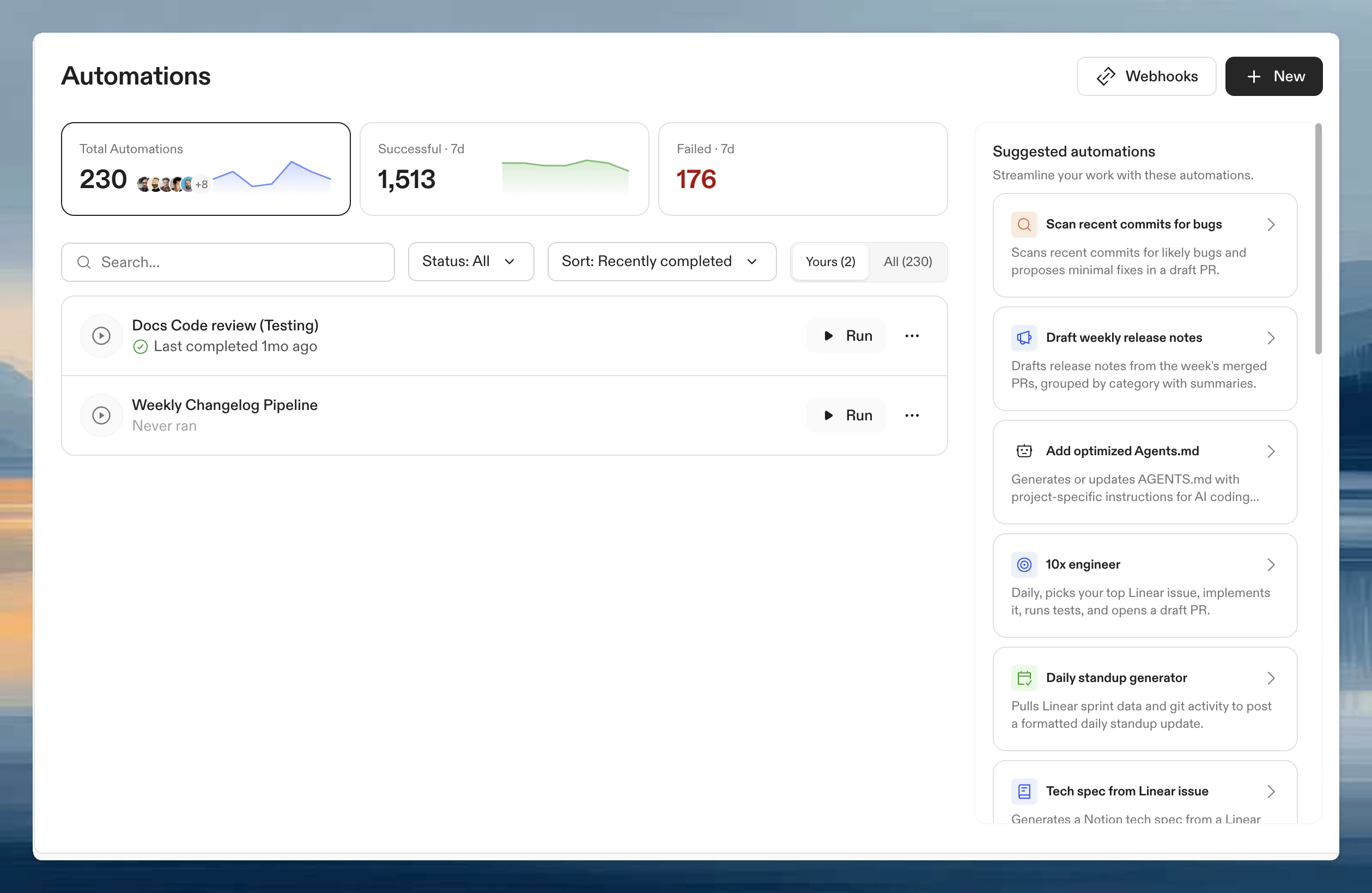
1. Navigate to **Automations** in the left panel.
2. Click **New**.
3. Choose **Start from scratch** or select a pre-configured template.
 ## Name and description
To set or change the name and description, open the **⋯** menu on the Automation and select **Rename**. A dialog opens where you can edit both fields.
## Trigger type
* **[Manual](/docs/ona/automations/triggers/manual)**: run on demand
* **[Pull request](/docs/ona/automations/triggers/pullrequest)**: trigger on PR events
* **[Scheduled](/docs/ona/automations/triggers/timebased)**: run on a schedule
Click the trigger node and then **Edit** to open the trigger configuration dialog.
## Runs on
Each trigger includes a **Runs on** setting that determines where the Automation runs:
| Scope | Description |
| -------------------------- | -------------------------------------------------------------------------------------------------------------------------------------------- |
| **Projects** (recommended) | Run on specific [projects](/docs/ona/projects/overview). The Automation uses each project's Dev Container configuration and environment settings. |
| **Repositories** | Run on repositories matched by explicit URLs or a search query. Use for large-scale migrations across many repos. |
See [Manual triggers](/docs/ona/automations/triggers/manual) and [Pull request triggers](/docs/ona/automations/triggers/pullrequest) for scope configuration details per trigger type.
## Guardrails
Control execution limits to prevent Automations from running excessively:
* **Max concurrent actions**: simultaneous runs
* **Max total actions**: total allowed per run
Maximum values depend on your plan. See [Plans and limits](/docs/ona/automations/plans-and-limits) for per-plan caps and [Guardrails](/docs/ona/automations/guardrails) for details.
## Run Automation as
The **Run Automation as** selector is at the bottom of the trigger configuration dialog.
| Option | When to use |
| ---------------------------------------------------------- | -------------------------------------- |
| **Your user** | Manual workflows, personal Automations |
| **[Service account](/docs/ona/organizations/service-accounts)** | Scheduled or shared Automations |
## Steps
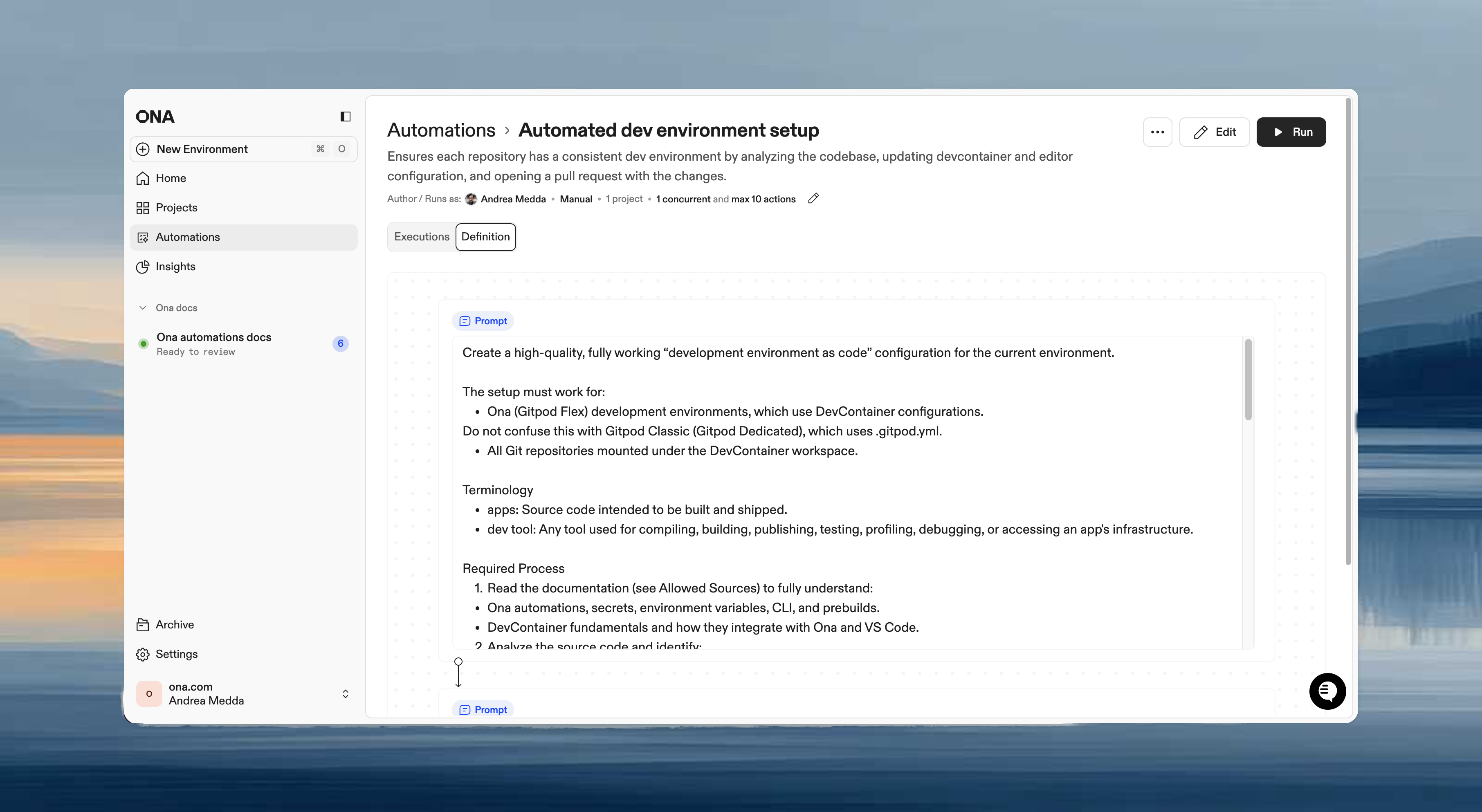
Steps execute in sequence within the same environment. Each step can access files, environment variables, and context from previous steps.
### Step types
| Type | Use when |
| ------------------------------------------ | ------------------------------------------------------------------------------------------- |
| **Prompt** | Flexible tasks requiring agent judgment: "analyze and improve", "update based on context" |
| **Command** | Deterministic operations: `npm test`, `docker build` |
| **Pull request** | Submit changes for review after making modifications |
| **[Report](/docs/ona/automations/report-step)** | Extract structured data from the execution: test coverage, dependency counts, build metrics |
### Example workflow
```
Step 1 (Prompt): "Upgrade all dependencies to their latest versions"
Step 2 (Command): npm test
Step 3 (PR): Create pull request with summary
```
**Guidance:**
* Use prompts for context-aware tasks that vary by repository.
* Use commands for predictable, repeatable operations.
* Combine both: commands for validation, prompts for intelligent changes.
## Name and description
To set or change the name and description, open the **⋯** menu on the Automation and select **Rename**. A dialog opens where you can edit both fields.
## Trigger type
* **[Manual](/docs/ona/automations/triggers/manual)**: run on demand
* **[Pull request](/docs/ona/automations/triggers/pullrequest)**: trigger on PR events
* **[Scheduled](/docs/ona/automations/triggers/timebased)**: run on a schedule
Click the trigger node and then **Edit** to open the trigger configuration dialog.
## Runs on
Each trigger includes a **Runs on** setting that determines where the Automation runs:
| Scope | Description |
| -------------------------- | -------------------------------------------------------------------------------------------------------------------------------------------- |
| **Projects** (recommended) | Run on specific [projects](/docs/ona/projects/overview). The Automation uses each project's Dev Container configuration and environment settings. |
| **Repositories** | Run on repositories matched by explicit URLs or a search query. Use for large-scale migrations across many repos. |
See [Manual triggers](/docs/ona/automations/triggers/manual) and [Pull request triggers](/docs/ona/automations/triggers/pullrequest) for scope configuration details per trigger type.
## Guardrails
Control execution limits to prevent Automations from running excessively:
* **Max concurrent actions**: simultaneous runs
* **Max total actions**: total allowed per run
Maximum values depend on your plan. See [Plans and limits](/docs/ona/automations/plans-and-limits) for per-plan caps and [Guardrails](/docs/ona/automations/guardrails) for details.
## Run Automation as
The **Run Automation as** selector is at the bottom of the trigger configuration dialog.
| Option | When to use |
| ---------------------------------------------------------- | -------------------------------------- |
| **Your user** | Manual workflows, personal Automations |
| **[Service account](/docs/ona/organizations/service-accounts)** | Scheduled or shared Automations |
## Steps
Steps execute in sequence within the same environment. Each step can access files, environment variables, and context from previous steps.
### Step types
| Type | Use when |
| ------------------------------------------ | ------------------------------------------------------------------------------------------- |
| **Prompt** | Flexible tasks requiring agent judgment: "analyze and improve", "update based on context" |
| **Command** | Deterministic operations: `npm test`, `docker build` |
| **Pull request** | Submit changes for review after making modifications |
| **[Report](/docs/ona/automations/report-step)** | Extract structured data from the execution: test coverage, dependency counts, build metrics |
### Example workflow
```
Step 1 (Prompt): "Upgrade all dependencies to their latest versions"
Step 2 (Command): npm test
Step 3 (PR): Create pull request with summary
```
**Guidance:**
* Use prompts for context-aware tasks that vary by repository.
* Use commands for predictable, repeatable operations.
* Combine both: commands for validation, prompts for intelligent changes.
 ## Add parameters to manual runs
Use Go template syntax in a **Prompt**, **Command**, or pull request title, description, or branch to request a value when someone starts the Automation manually.
For example, add `{{ .Parameters.ticket_id }}` to a prompt:
```text theme={null}
Investigate {{ .Parameters.ticket_id }}, implement a fix, and run the relevant tests.
```
The same syntax works in a shell command:
```bash theme={null}
./scripts/release.sh {{ .Parameters.release_channel }}
```
Parameter names must start with a letter or underscore and contain only letters, numbers, and underscores. An Automation can reference up to 10 unique parameters.
When a user clicks **Run**, Ona detects the referenced names and opens **Run with options**. Every value is required. See [Run an Automation with parameters](/docs/ona/automations/running-automations#run-with-parameters) for the execution flow.
Run parameters are entered interactively for manual executions. Scheduled and pull request triggers cannot prompt for parameter values, so use fixed values or trigger context for those runs.
Do not use run parameters for credentials or other sensitive values. Configure [service account secrets](/docs/ona/organizations/service-accounts#secrets) instead.
## Save and edit
Click **Save** to create the Automation. All settings can be modified after creation.
Pull request triggers require an event source: [GitHub](/docs/ona/integrations/configure-github) (for GitHub.com) or a [webhook](/docs/ona/automations/webhooks). See [Pull request triggers](/docs/ona/automations/triggers/pullrequest) for details.
## Enable and disable
Disable an Automation to stop it from running without deleting it. Disabled Automations keep their configuration, execution history, and triggers, but no new runs can start (manually or via triggers).
To toggle an Automation:
* **From the list**: open the three-dot menu on any Automation and select **Disable** or **Enable**.
* **From the details page**: use the toggle switch next to the Automation name.
Disabled Automations appear with muted styling in the list and show a "Disabled" status label. Use the **Enabled** / **Disabled** filter in the status dropdown to find them.
Disabling is useful when you want to pause a scheduled or event-driven Automation temporarily, for example during a code freeze or while debugging a failing workflow, without losing its configuration.
## Next steps
* [Run an Automation](/docs/ona/automations/running-automations)
* [Troubleshooting](/docs/ona/automations/troubleshooting)
## Add parameters to manual runs
Use Go template syntax in a **Prompt**, **Command**, or pull request title, description, or branch to request a value when someone starts the Automation manually.
For example, add `{{ .Parameters.ticket_id }}` to a prompt:
```text theme={null}
Investigate {{ .Parameters.ticket_id }}, implement a fix, and run the relevant tests.
```
The same syntax works in a shell command:
```bash theme={null}
./scripts/release.sh {{ .Parameters.release_channel }}
```
Parameter names must start with a letter or underscore and contain only letters, numbers, and underscores. An Automation can reference up to 10 unique parameters.
When a user clicks **Run**, Ona detects the referenced names and opens **Run with options**. Every value is required. See [Run an Automation with parameters](/docs/ona/automations/running-automations#run-with-parameters) for the execution flow.
Run parameters are entered interactively for manual executions. Scheduled and pull request triggers cannot prompt for parameter values, so use fixed values or trigger context for those runs.
Do not use run parameters for credentials or other sensitive values. Configure [service account secrets](/docs/ona/organizations/service-accounts#secrets) instead.
## Save and edit
Click **Save** to create the Automation. All settings can be modified after creation.
Pull request triggers require an event source: [GitHub](/docs/ona/integrations/configure-github) (for GitHub.com) or a [webhook](/docs/ona/automations/webhooks). See [Pull request triggers](/docs/ona/automations/triggers/pullrequest) for details.
## Enable and disable
Disable an Automation to stop it from running without deleting it. Disabled Automations keep their configuration, execution history, and triggers, but no new runs can start (manually or via triggers).
To toggle an Automation:
* **From the list**: open the three-dot menu on any Automation and select **Disable** or **Enable**.
* **From the details page**: use the toggle switch next to the Automation name.
Disabled Automations appear with muted styling in the list and show a "Disabled" status label. Use the **Enabled** / **Disabled** filter in the status dropdown to find them.
Disabling is useful when you want to pause a scheduled or event-driven Automation temporarily, for example during a code freeze or while debugging a failing workflow, without losing its configuration.
## Next steps
* [Run an Automation](/docs/ona/automations/running-automations)
* [Troubleshooting](/docs/ona/automations/troubleshooting)